
Online Payments
Summary: This article provides instructions on our Online Payment system
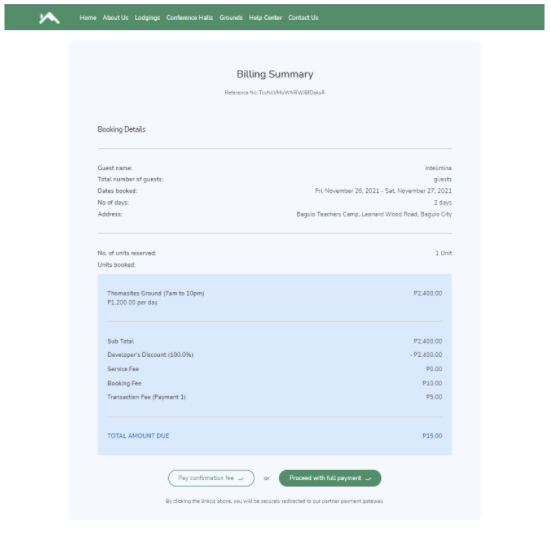
After clicking the “View bill” button in the email, guests would be redirected back to the site showing a billing summary. From here, guests may pay the confirmation fee (partial payment), or pay the booking fully by clicking the buttons accordingly.
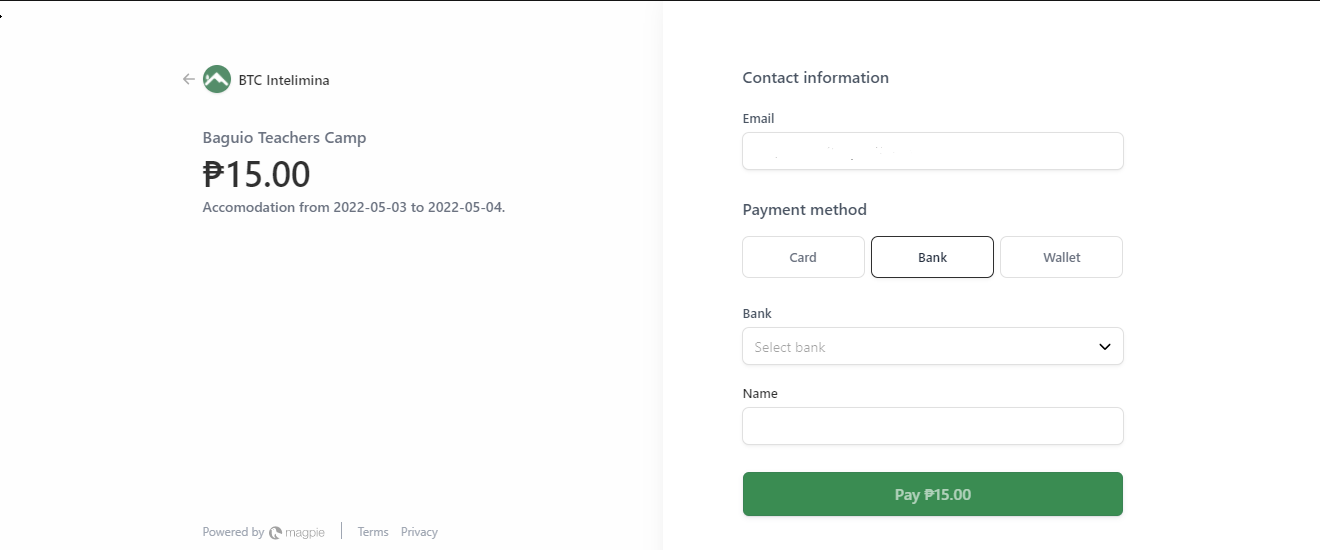
This would redirect the guests to the payment gateway Magpie, from here there are multiple payment methods the guest can choose from. They can choose Card, Bank, or E-Wallet.
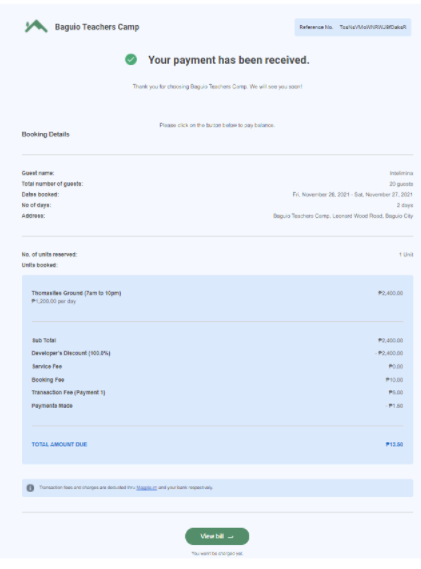
After a successful payment, guests are redirected back to the site showing any payments made, and if there is still any amount due.

A notification email would also be received after the payment has been done. Note that when only a partial payment has been made, the “View bill” button would still be displayed. Clicking it would redirect the guest back to the website again showing how much is still due.
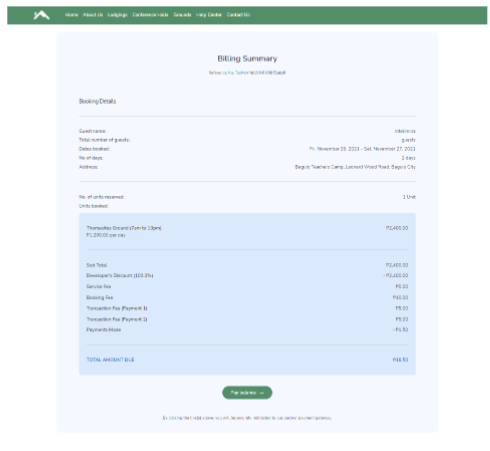
From here the guest can pay their bill fully by clicking the “Pay balance” button, which will redirect them again to the payment gateway magpie.
When a booking is paid fully, the guest would see that their amount due would be zero.
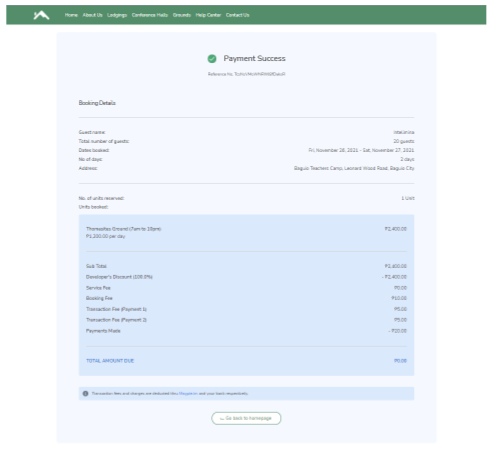
A notification email would also be received by the guest, showing that they paid their booking fully.

No Comments