# Online Payments
**Summary: This article provides instructions on our Online Payment system**
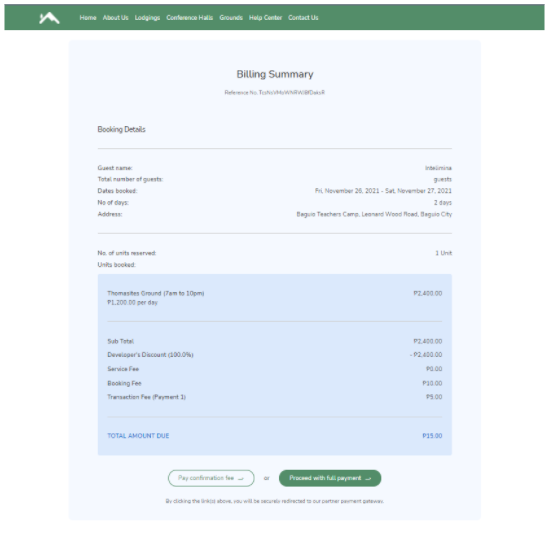
After clicking the “**View bill**” button in the email, guests would be redirected back to the site showing a billing summary. From here, guests may pay the confirmation fee (partial payment), or pay the booking fully by clicking the buttons accordingly.
[](https://wiki.onlinedooze.com/uploads/images/gallery/2022-04/image-1649667510286.png)
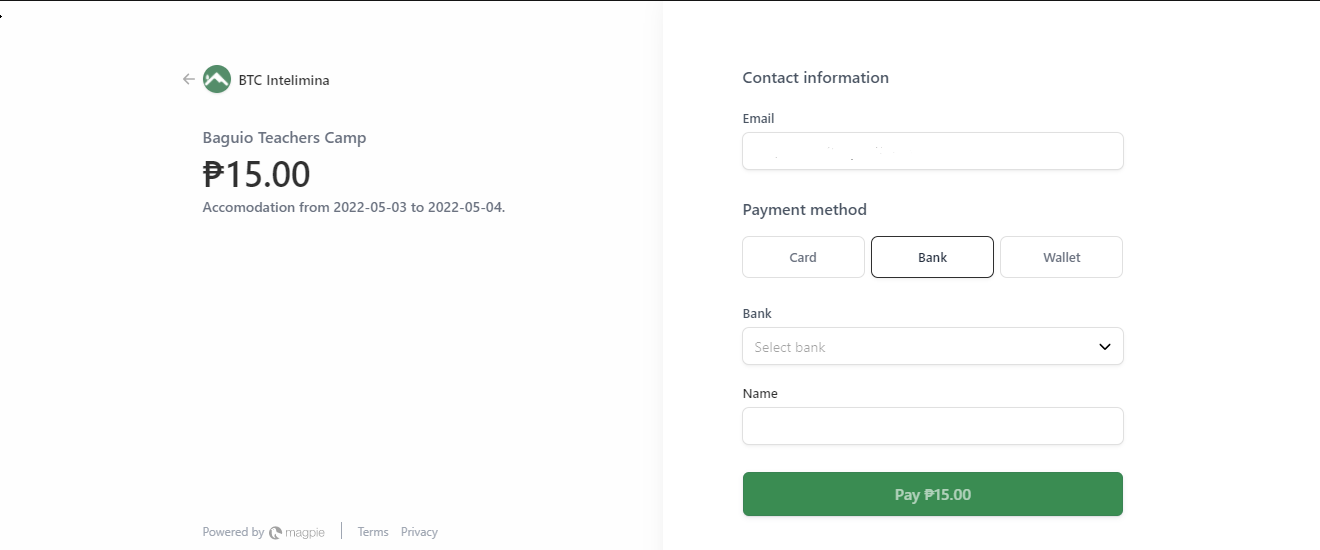
This would redirect the guests to the payment gateway Magpie, from here there are multiple payment methods the guest can choose from. They can choose Card, Bank, or E-Wallet.
[](https://wiki.onlinedooze.com/uploads/images/gallery/2022-04/image-1650258721904.png)
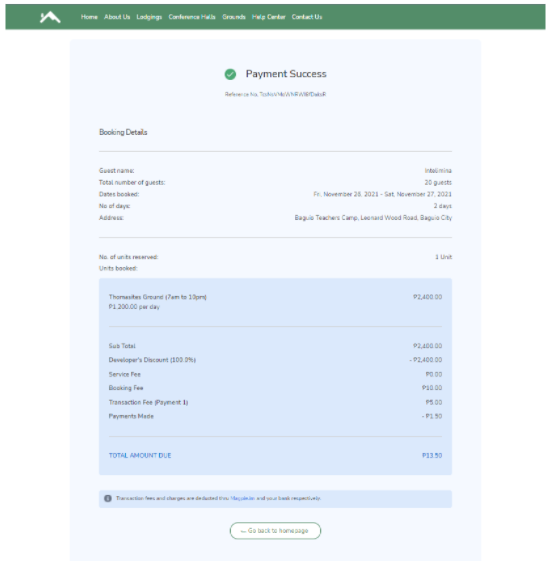
After a successful payment, guests are redirected back to the site showing any payments made, and if there is still any amount due.
[](https://wiki.onlinedooze.com/uploads/images/gallery/2022-04/image-1649667541970.png)
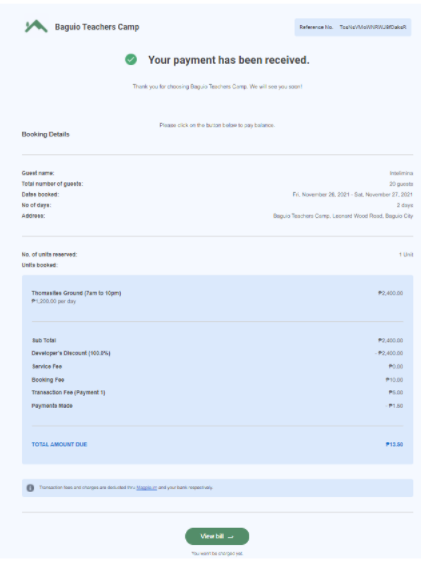
A notification email would also be received after the payment has been done. Note that when only a partial payment has been made, the “View bill” button would still be displayed. Clicking it would redirect the guest back to the website again showing how much is still due.
[](https://wiki.onlinedooze.com/uploads/images/gallery/2022-04/image-1649667572446.png)
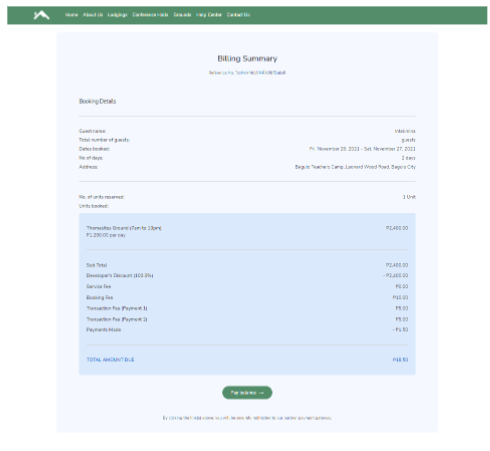
From here the guest can pay their bill fully by clicking the “Pay balance” button, which will redirect them again to the payment gateway magpie.
[](https://wiki.onlinedooze.com/uploads/images/gallery/2022-04/image-1649667591386.png)
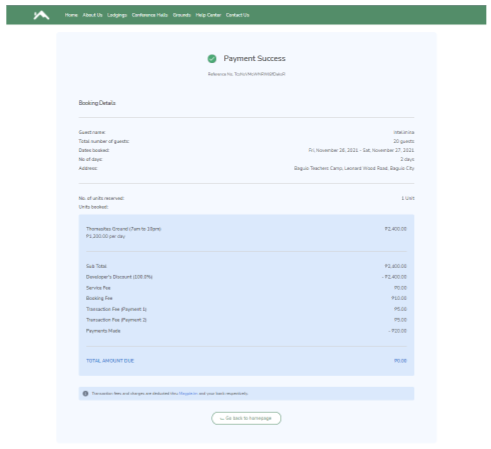
When a booking is paid fully, the guest would see that their amount due would be zero.
[](https://wiki.onlinedooze.com/uploads/images/gallery/2022-04/image-1649667608669.png)
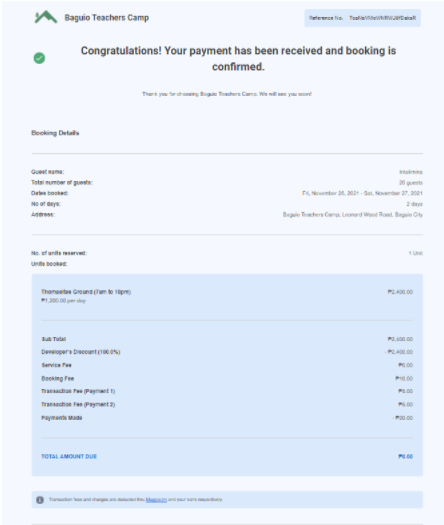
A notification email would also be received by the guest, showing that they paid their booking fully.
[](https://wiki.onlinedooze.com/uploads/images/gallery/2022-04/image-1649667624093.png)