# Conference Halls Page
**Summary: This article provides instructions on how to book using the Conference Hall Page**
[](https://wiki.onlinedooze.com/uploads/images/gallery/2022-04/image-1649667078022.png)
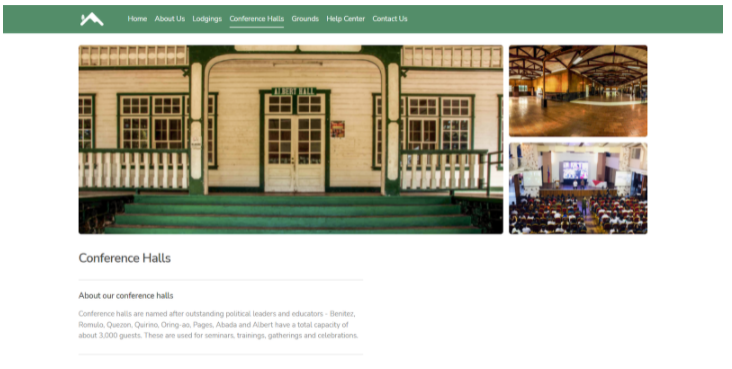
**Conferences Hall page** allows the guests to directly search and book for conference hall unit types.
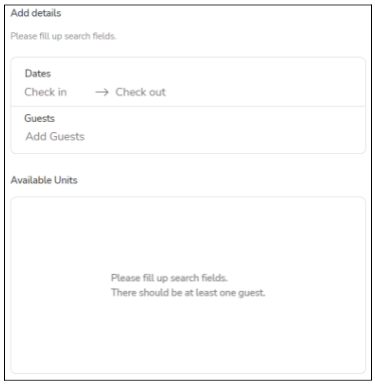
*Search fields are automatically filled if the Guest used the main search bar from the **home page**, otherwise guests are prompted to enter their desired **Conference Hall** booking details.*
[](https://wiki.onlinedooze.com/uploads/images/gallery/2022-04/image-1649667138412.png)
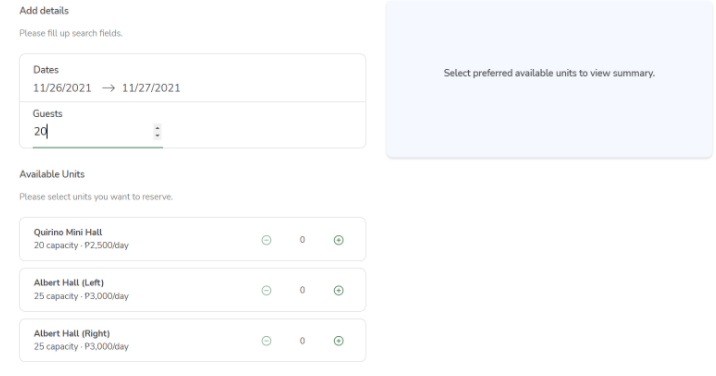
Upon filling up the details, the available units for reservation would be displayed in a list.
[](https://wiki.onlinedooze.com/uploads/images/gallery/2022-04/image-1649667157425.png)
Guests can then choose which conference hall units that are available for reservation. This would display a quick summary including the calculated price. Guests can also click the minus (**-**) button from the list to deselect previously selected units in case they change their mind. Clicking the **“Reserve”** button would direct the guests to the booking details form.
[](https://wiki.onlinedooze.com/uploads/images/gallery/2022-04/image-1649667176393.png)