# Booking Details (Form) Page
**Summary: This article provides instructions regarding the Booking Details Page**
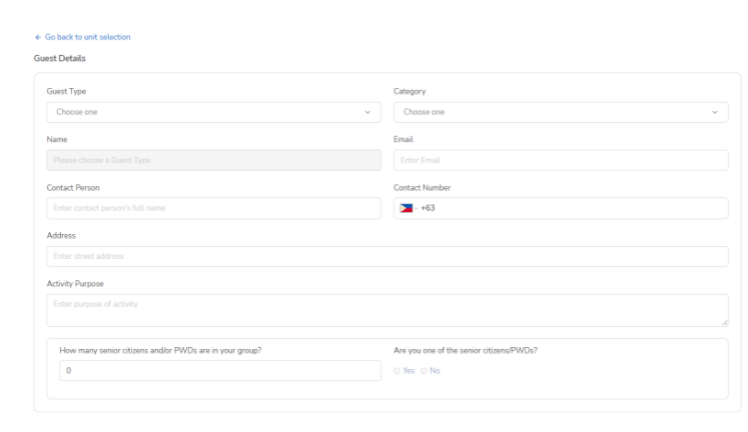
After reserving a unit, the guest is then directed to the booking details page. The booking details page contains a form where the guest needs to provide further details such as the name of the individual or organization who booked the reservation and other necessary fields that are provided.
[](https://wiki.onlinedooze.com/uploads/images/gallery/2022-04/image-1649667289319.png)
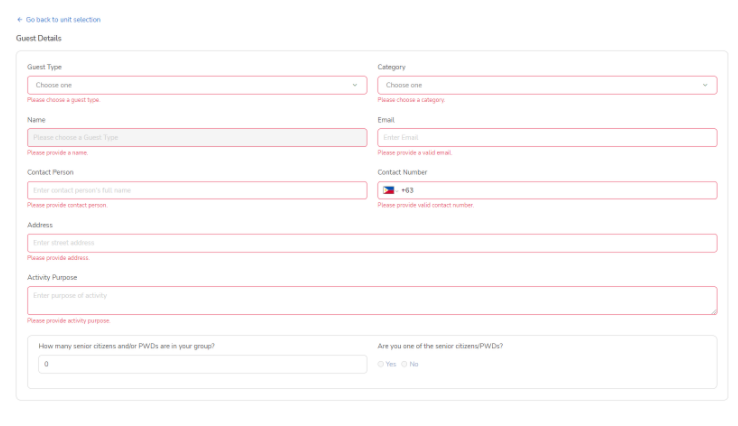
*Unfinished fields are highlighted red and guests are required to fill it correctly before continuing. All fields except for the number of senior citizens/PWDs are required. *
[](https://wiki.onlinedooze.com/uploads/images/gallery/2022-04/image-1649667304785.png)
**Booking details page** also displays a quick summary of the intended booking. To remind the guests of the details of the booking and the units/grounds they want to book before continuing. Clicking the “**Book**” button will submit the form.
*Note: Check all the details first before clicking the "**Book**" button.*
[](https://wiki.onlinedooze.com/uploads/images/gallery/2022-04/image-1649667322396.png)
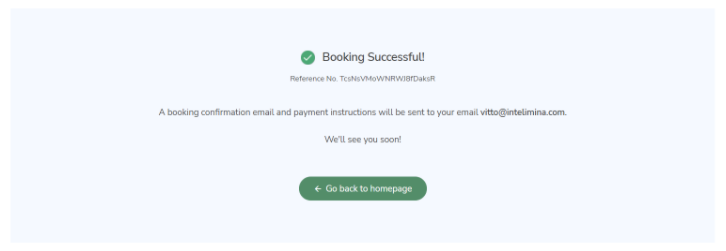
A successful submission would look like this:
[](https://wiki.onlinedooze.com/uploads/images/gallery/2022-04/image-1649667341473.png)