BTC Guide for Users
Guide for BTC clients
- Home Page
- Lodgings Page
- Conference Halls Page
- Grounds Page
- Booking Details (Form) Page
- Notifications Emails
- Online Payments
- Help Center
- Contact Us
Home Page
Summary: This article provides information about the Home Page
Home Page - Guests are greeted by a home screen where it allows the guests to quickly choose their unit type, check-in and check-out dates, and then include the number of guests that will check-in.
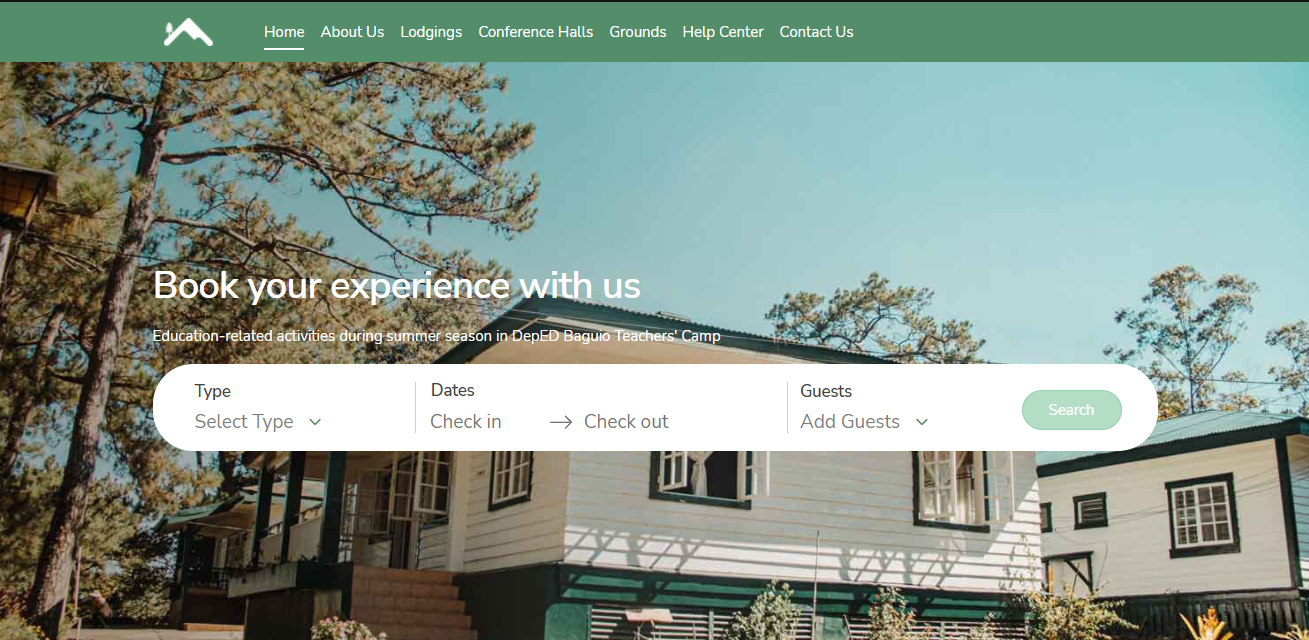
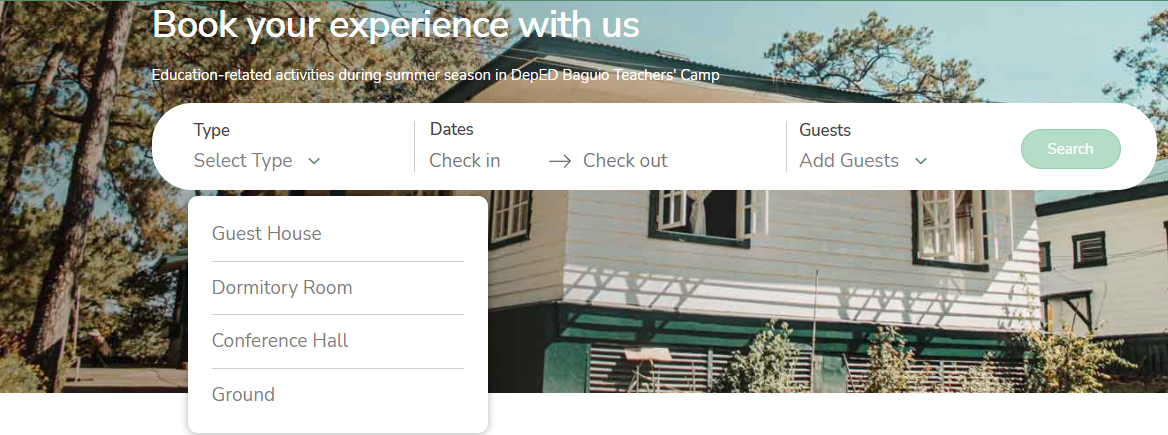
Guests can choose a unit type from those offered by our website. Simply click the dropdown field under Type.
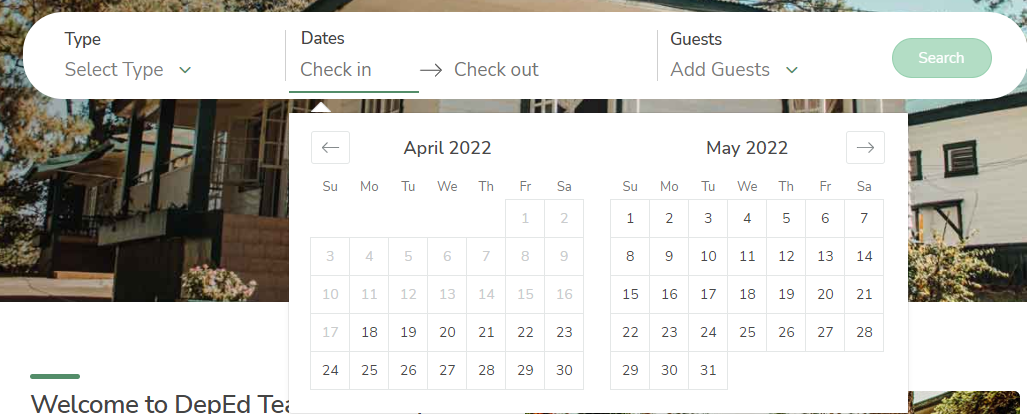
Guests can select their desired check-in and check-out dates by clicking the Check-in and Check-out field.
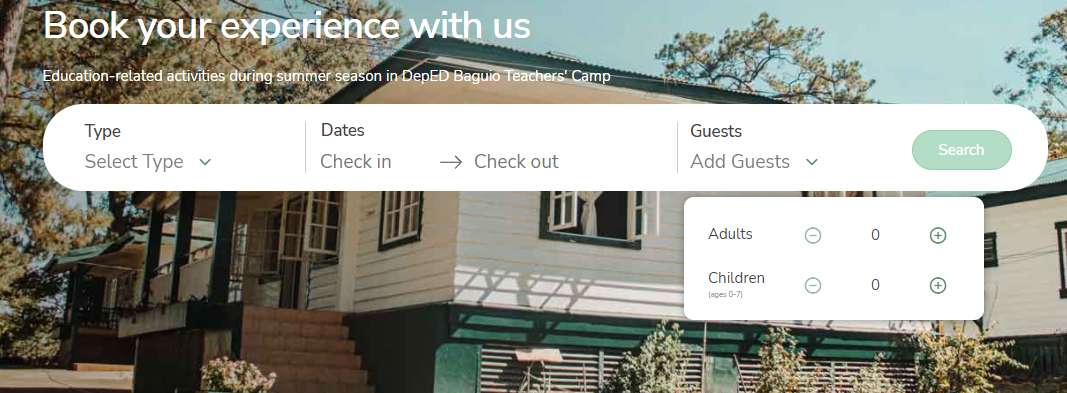
The number of guests are divided between adults and children. This field needs to be specified. To specify the number of guests, click the Add Guests field and click the + icon to increase the number of adult and/or child guests. Click the - icon to decrease it.
Please note that only those 7 years old and below are considered children.
All throughout the web application/site guests will see this navigation header and each of it contains the following definitions below:

This will help our guests to navigate the website:
- Home - The home page of the site that contains the main search bar for various types of stays and/or activities. It also hosts other links and information about Baguio Teachers Camp.
- About Us - Contains more information about Baguio Teachers Camp.
- Lodgings - A page for directly booking lodging units such as dormitory rooms and guest houses. These units can also be booked from the main search bar in the home page, and would direct guests to this page as well. This page can also be accessed from the Stay section of the home page.
- Conference Halls - A page for directly booking conference halls. Selecting conference halls as unit type from the main search bar in the home page would also direct guests to this page. This page can also be accessed from the Activities section of the home page.
- Grounds - A page for directly booking grounds. Searching grounds as unit type from the main search bar would also direct guests to this page. This page can also be accessed from the Activities section of the home page.
- Help Center - Contains information on rules, guidelines, protocols, and reminders when booking in Baguio Teachers Camp. It also has quick links jumping to specific topics.
- Contact Us - Provides contact information for Baguio Teachers Camp.
Lodgings Page
Summary: This article provides instructions on how to book using the Lodgings Page
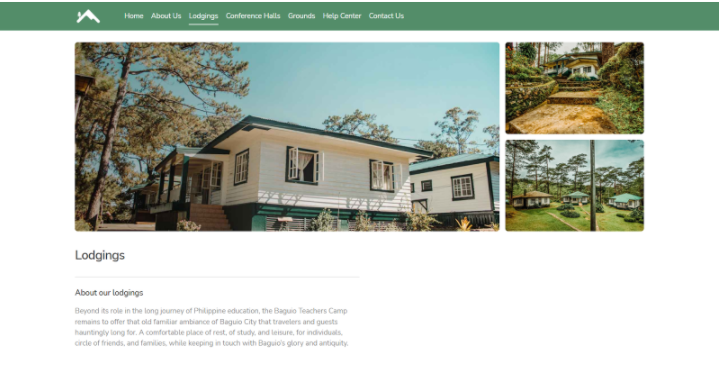
Lodgings Page allows our guests to directly book the unit types offered.
Search fields are automatically filled if the Guest used the main search bar from the home page, otherwise guests are prompted to enter their desired Lodgings booking details.
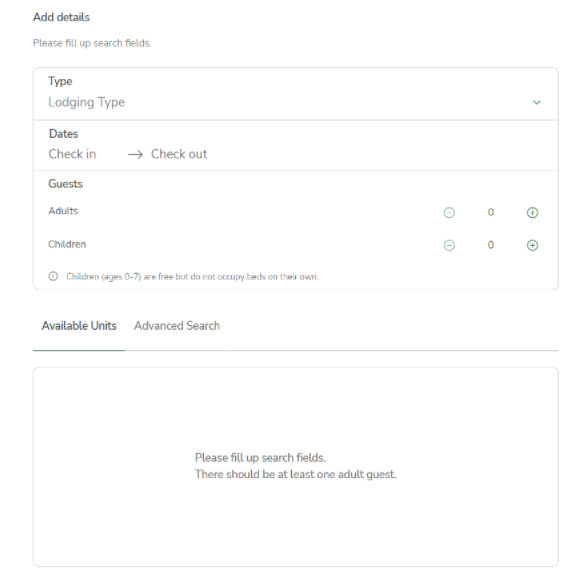
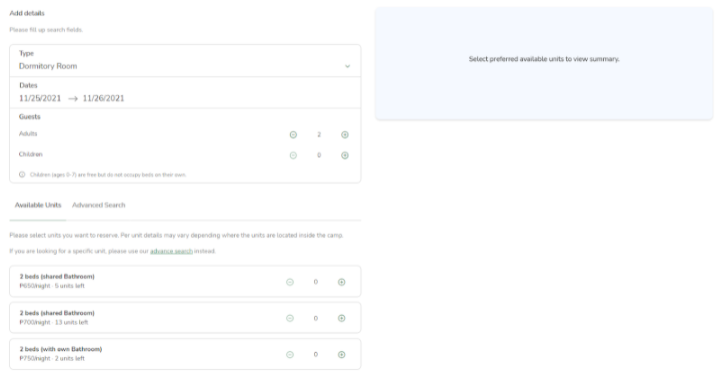
Upon filling up the details, the available units for reservation within the given details would be displayed in a list. Lodging units are aggregated based on their price, beds/rooms, and bathrooms.
If guests already have a specific unit in mind, they can click the Advanced Search tab to search for their desired unit(s).
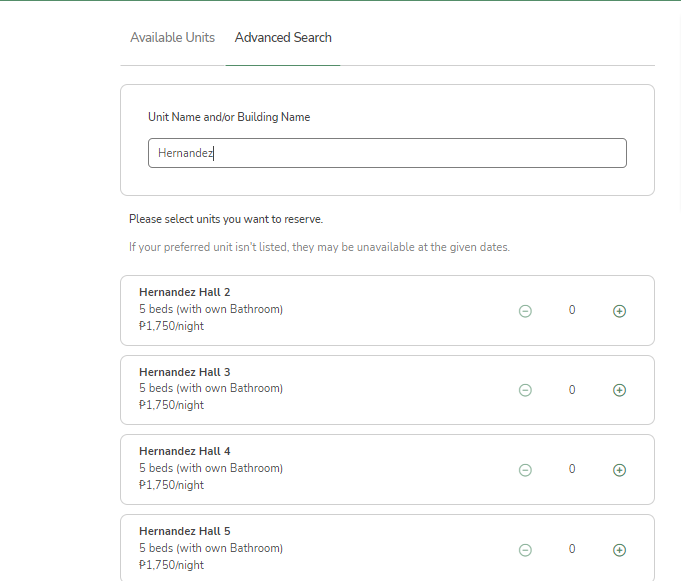
Using the screenshot above as an example, the guest can searching for a specific room type and searched "Hernandez Hall"
Guests can then choose which lodging units that are available for reservation. This would display a quick summary including the calculated price. Guests can also click the minus (-) button from the list to deselect any previously selected units in case they change their mind. Clicking the “Reserve” button would direct the guests to the booking details form.
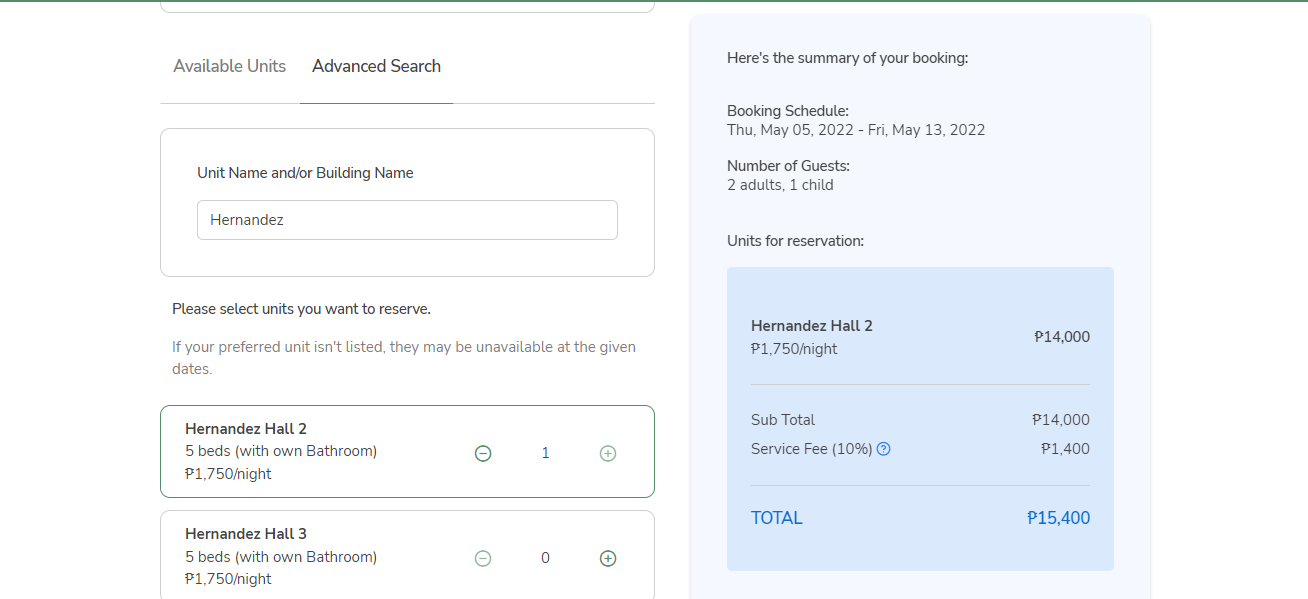
Note: The “?” icons are clickable and will redirect to the guest to the help center page.
Conference Halls Page
Summary: This article provides instructions on how to book using the Conference Hall Page

Conferences Hall page allows the guests to directly search and book for conference hall unit types.
Search fields are automatically filled if the Guest used the main search bar from the home page, otherwise guests are prompted to enter their desired Conference Hall booking details.
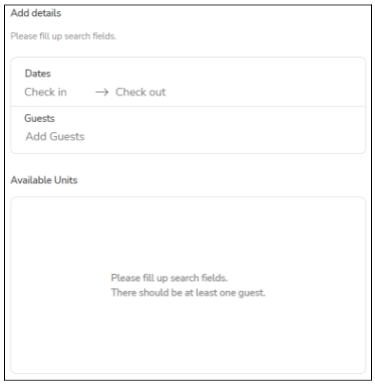
Upon filling up the details, the available units for reservation would be displayed in a list.
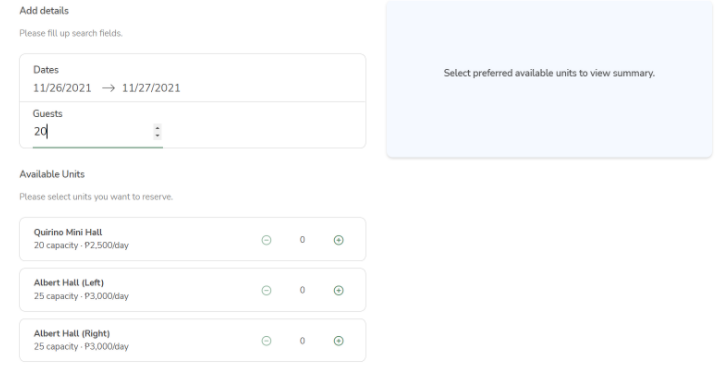
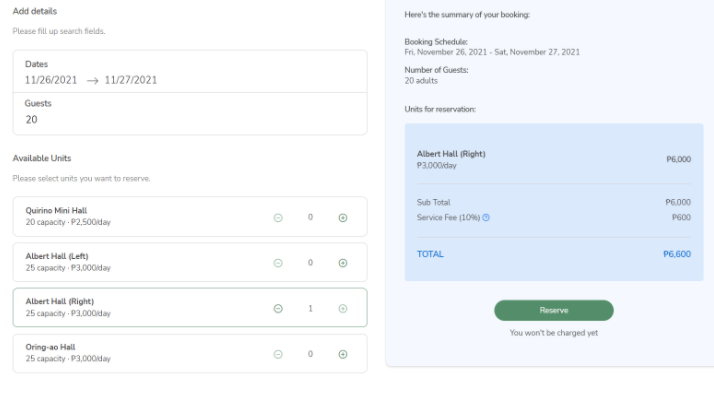
Guests can then choose which conference hall units that are available for reservation. This would display a quick summary including the calculated price. Guests can also click the minus (-) button from the list to deselect previously selected units in case they change their mind. Clicking the “Reserve” button would direct the guests to the booking details form.
Grounds Page
Summary: This article provides instructions on how to book using the Grounds Page
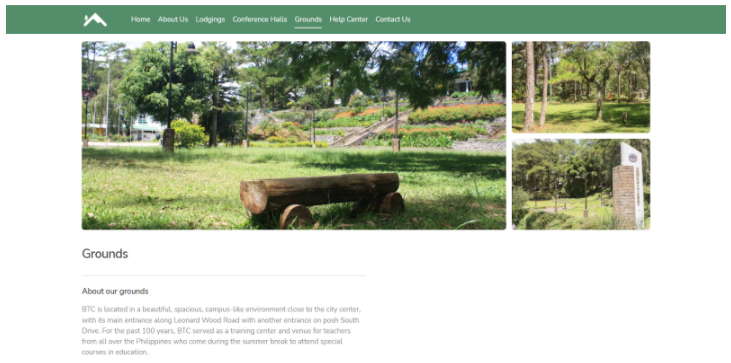
Grounds page allows our guests to directly search and book for grounds unit types. Upon adding search details, available units for reservation within the given details would be displayed in a list.
Search fields are automatically filled if the Guest used the main search bar from the home page, otherwise guests are prompted to enter their desired Grounds booking details.
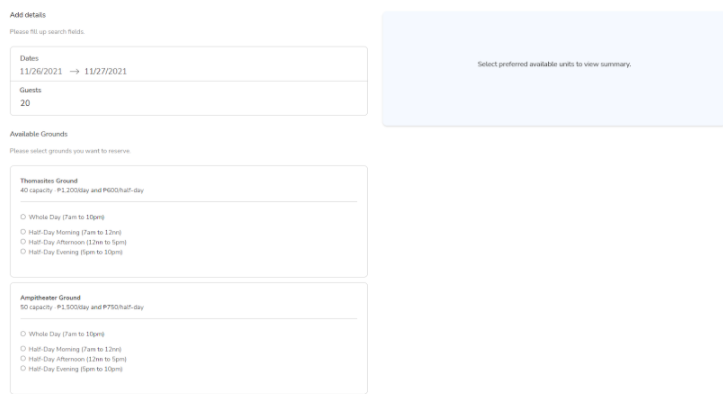
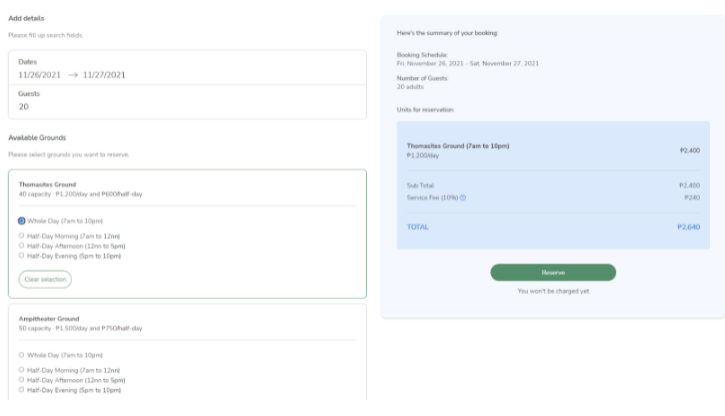
Guests can then select a specific Ground. They also have the option of booking it for the whole day or only a portion of the day. This would display a quick summary including calculated price. Guests can also click the “Clear selection” button from the list to deselect previously selected ground in case they change their mind. Clicking the “Reserve” button would direct the guests to the booking details form.
Booking Details (Form) Page
Summary: This article provides instructions regarding the Booking Details Page
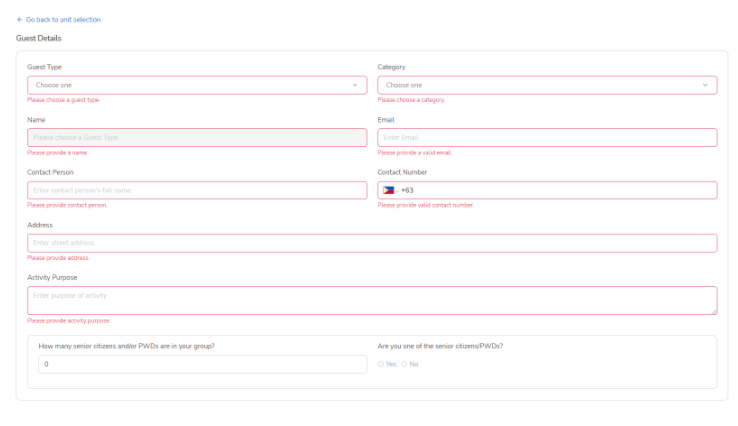
After reserving a unit, the guest is then directed to the booking details page. The booking details page contains a form where the guest needs to provide further details such as the name of the individual or organization who booked the reservation and other necessary fields that are provided.
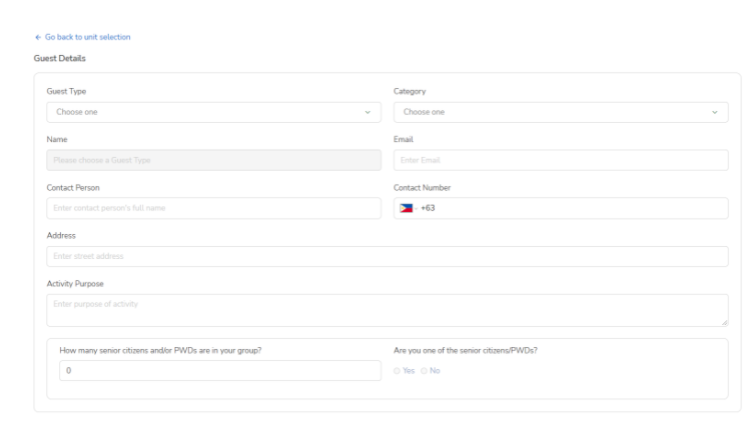
Unfinished fields are highlighted red and guests are required to fill it correctly before continuing. All fields except for the number of senior citizens/PWDs are required.
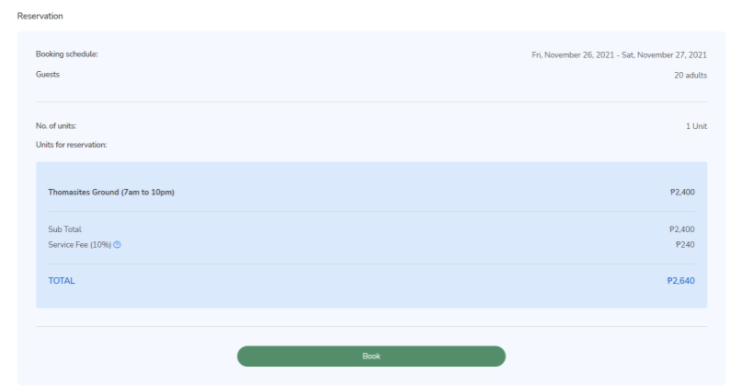
Booking details page also displays a quick summary of the intended booking. To remind the guests of the details of the booking and the units/grounds they want to book before continuing. Clicking the “Book” button will submit the form.
Note: Check all the details first before clicking the "Book" button.
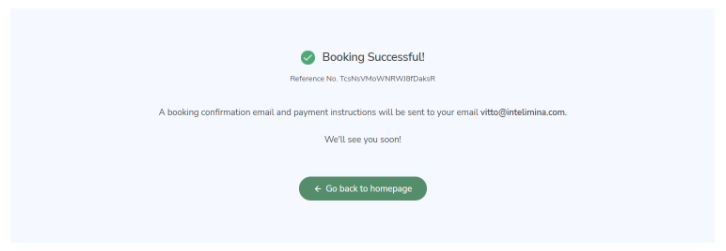
A successful submission would look like this:
Notifications Emails
Summary: This article provides information about the Notification Emails that will be sent to the user
Upon submission of the booking details, the guest would receive an email notifying them that their reservation is now pending.
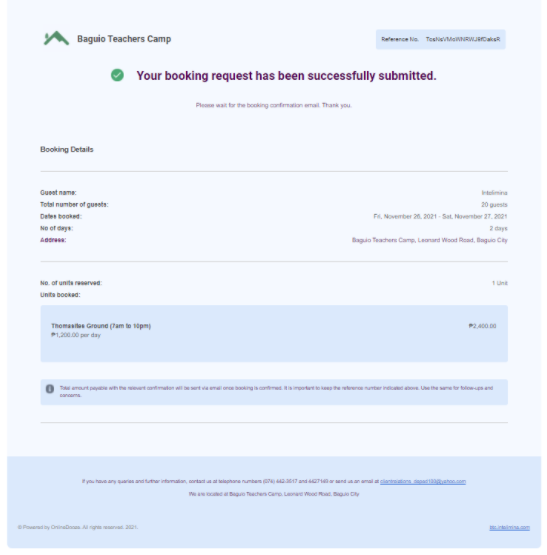
After the Baguio Teachers Camp staff deems the booking for payment, a notification email would be received by the guest.
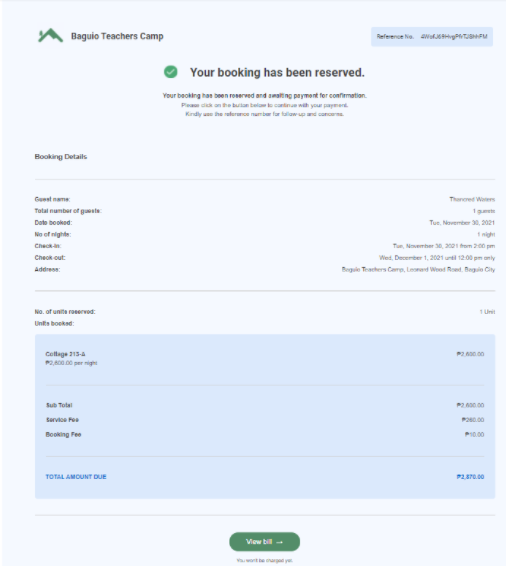
Clicking the “View Bill” button would direct the guest to the billing summary page.
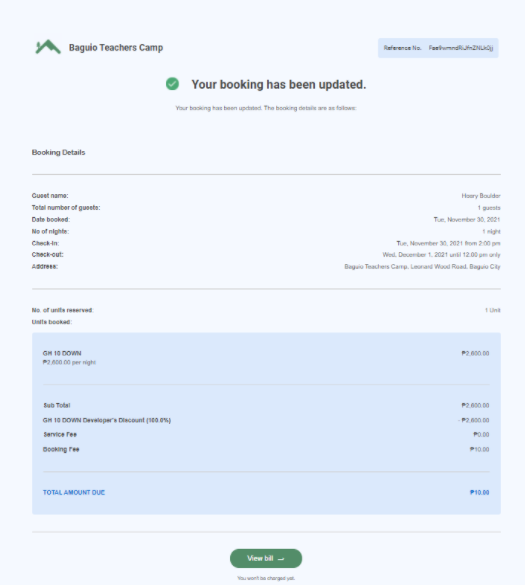
Notification emails are also sent in cases where the booking has to be updated (e.g. room changes, additional discounts, etc).
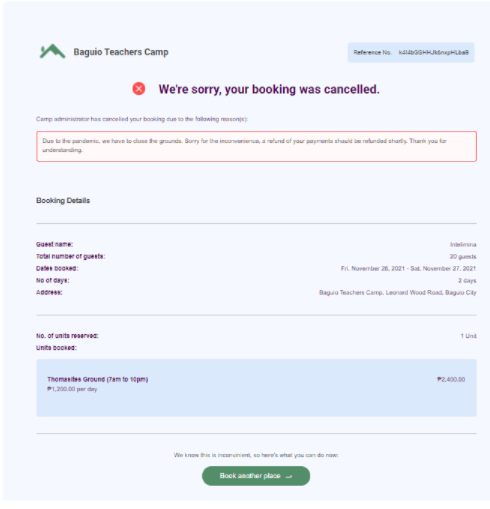
Finally, notification emails are also sent when a booking is cancelled, indicating all previous payments may be refunded:
Online Payments
Summary: This article provides instructions on our Online Payment system
After clicking the “View bill” button in the email, guests would be redirected back to the site showing a billing summary. From here, guests may pay the confirmation fee (partial payment), or pay the booking fully by clicking the buttons accordingly.
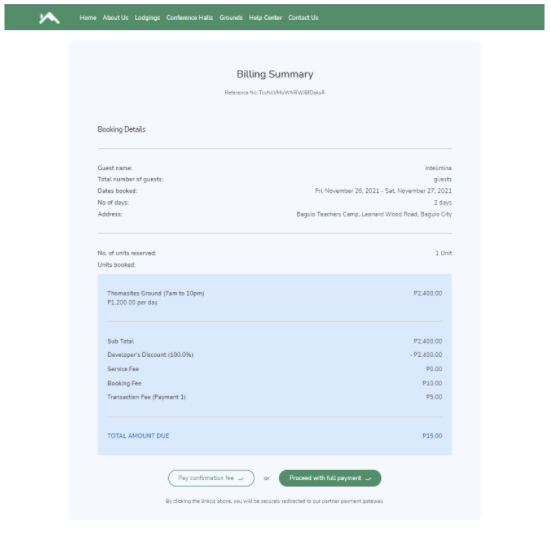
This would redirect the guests to the payment gateway Magpie, from here there are multiple payment methods the guest can choose from. They can choose Card, Bank, or E-Wallet.
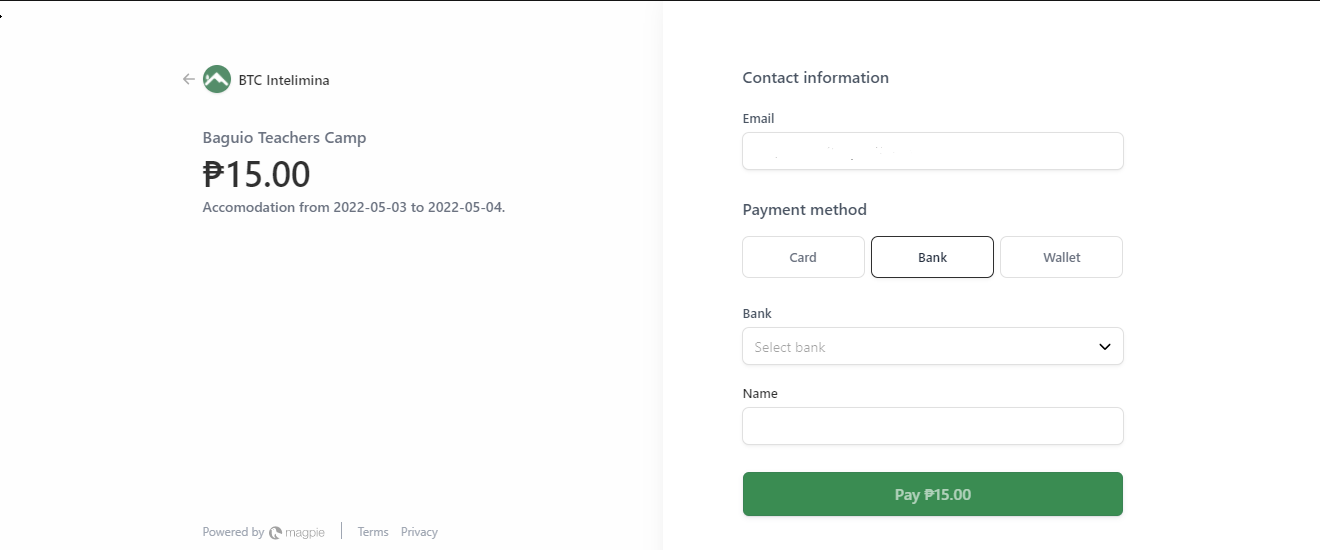
After a successful payment, guests are redirected back to the site showing any payments made, and if there is still any amount due.

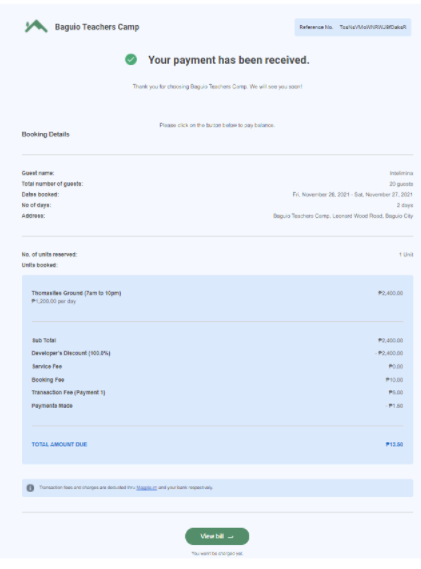
A notification email would also be received after the payment has been done. Note that when only a partial payment has been made, the “View bill” button would still be displayed. Clicking it would redirect the guest back to the website again showing how much is still due.
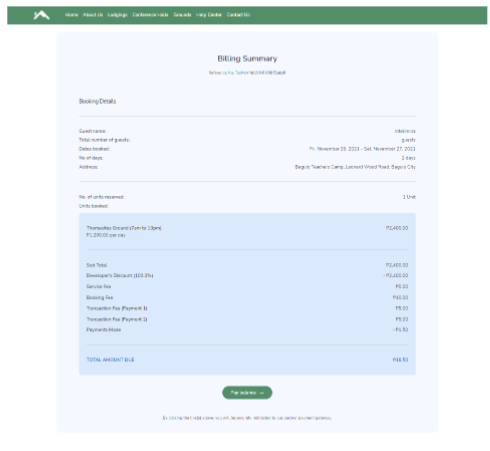
From here the guest can pay their bill fully by clicking the “Pay balance” button, which will redirect them again to the payment gateway magpie.
When a booking is paid fully, the guest would see that their amount due would be zero.
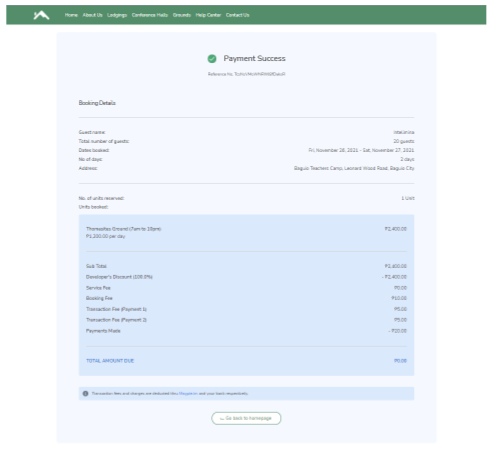
A notification email would also be received by the guest, showing that they paid their booking fully.

Help Center
Summary: This article provides information about the Help Center page.
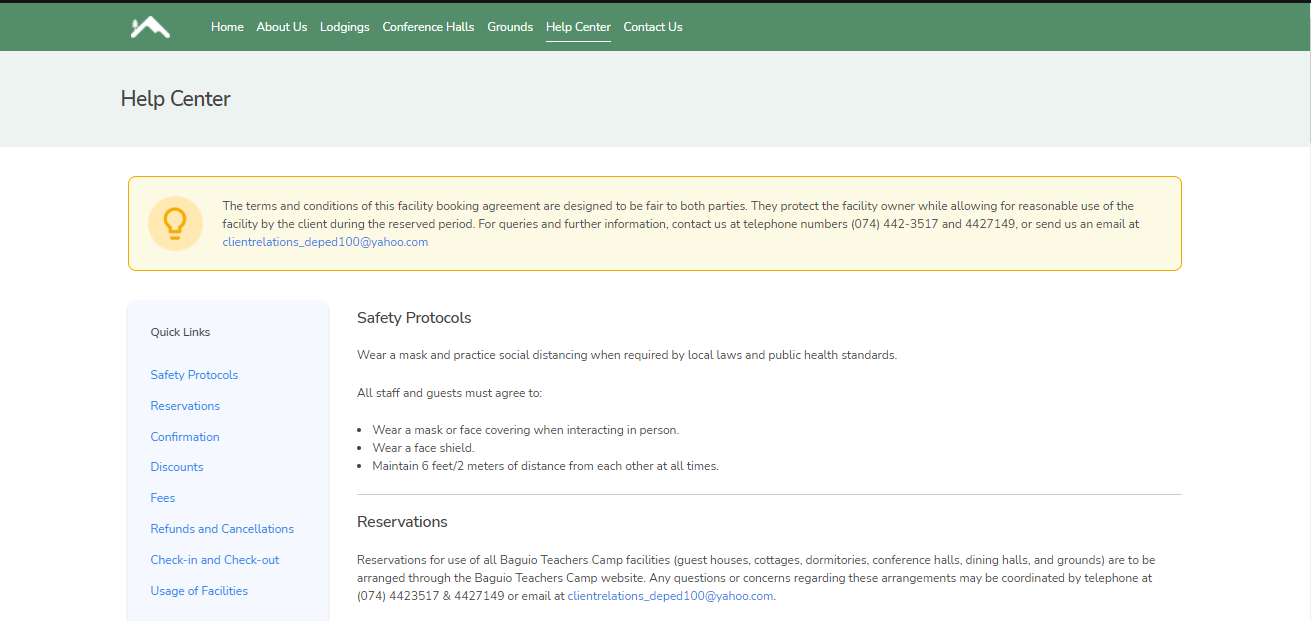
This is the page where guests can find answers to their questions and solutions to their problems.
Contact Us
Summary: This article provides our information and where you can reach us
If the guests have any questions or problems that does not exist on the Help Center page, they can contact our support through the details under the Contact Us page.
