# Viewing List of Bookings Page
**Summary: This article provides instructions on how to view the bookings page.**
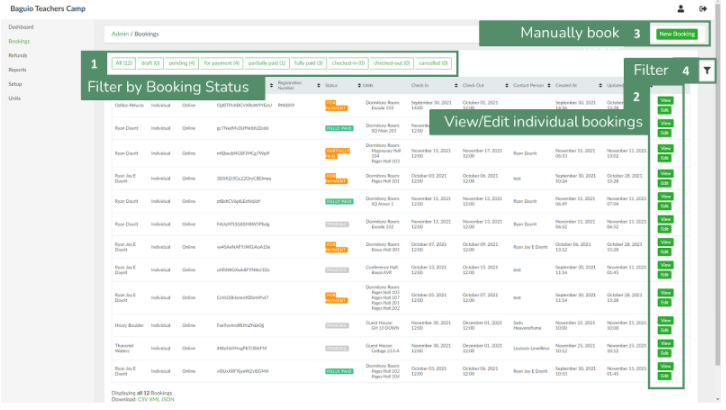
1. From side navigation, click **Bookings.** This will load the list of bookings page.
[](https://wiki.onlinedooze.com/uploads/images/gallery/2022-04/image-1649740647369.png)
2. List can be filtered either by using the preset tabs based on booking status (1) or making use of the filter button (4).
3. To view a booking entry information, select a booking entry and click the **View** button (2).
[](https://wiki.onlinedooze.com/uploads/images/gallery/2022-04/image-1649740668257.png)
**In the booking information page, the admin can:**
1. Edit Booking - update booking information, add reservations, add-ons, and additional fees.
2. Approve Booking - approve booking. Name of admin who approved the booking will appear under Booking Details (#5)
3. For Payment - change the status from PENDING to FOR PAYMENT and sends an email to user/client requesting for payment.
4. Cancel Booking - cancel booking
5. The admin can also review various information about the booking:
6. Booking Details - Booking type, guest numbers, guest types etc.
7. Guest information
8. Reservations - reservation details and costs
9. Bills - list of bills and their corresponding status.[](https://wiki.onlinedooze.com/uploads/images/gallery/2022-04/image-1649740762390.png)
10. Subtotal - breakdown of fees
11. Total - total payables