# Manually Adding Booking Entries
**Summary: This article provide instructions on how to add a book entry**
1. In the list of bookings page, click the **New Booking** button. This will open the Create New Booking page:[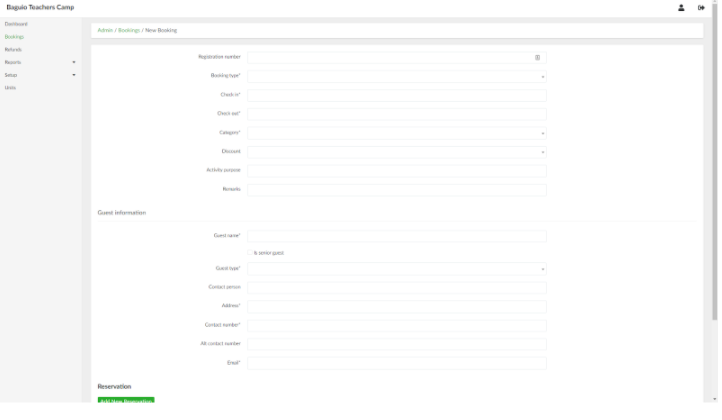](https://wiki.onlinedooze.com/uploads/images/gallery/2022-04/image-1649741001987.png)
2. Provide the necessary information in their respective fields.
3. To add a reservation, click the **Add New Reservation** button and provide the necessary details in their respective fields. Click the button again to add additional reservations.
4. To add addons, click the **Add New Addon** and select an addon to add. Click the button again to add additional addons.
5. To add additional fees, click the **Add New Fees** button and select a fee to add. Click the button again to add additional fees.
6. When done, click the **Create Booking** button.