# Cancelling Booking Entries
**Summary: This articles provides instructions on how to cancel booking entries.**
**Note:** Booking entries can be cancelled at any point from Pending status till Paid status. When underpaid status, a refund can be processed as well. Note that booking can only be cancelled before Checking-in.
**To cancel a booking entry:**
1. In the booking entry information page, click the **Cancel Booking** button. This will open the Booking Cancellation page:[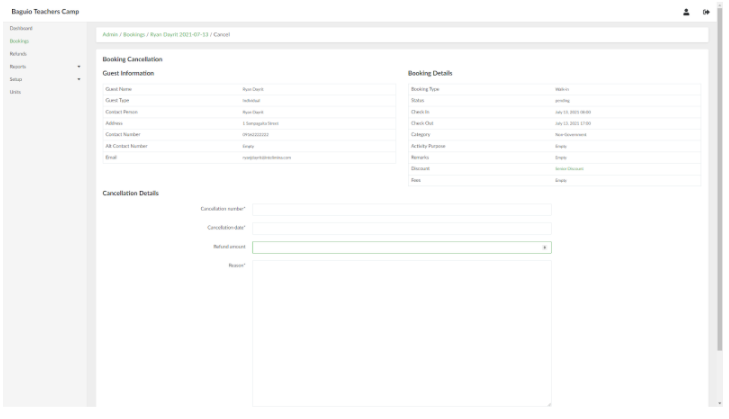](https://wiki.onlinedooze.com/uploads/images/gallery/2022-04/image-1649741264721.png)
2. Provide the necessary information for the booking cancellation. When done, click the **Create Booking cancellation** button. *Note that any amount provided in the Refund amount field will be ignored if the booking entry is not underpaid status (i.e. the user has not paid yet).*
3. To access the list of refunds made, in the side navigation pane, click **Refunds**. This will open the list of Refunds page.[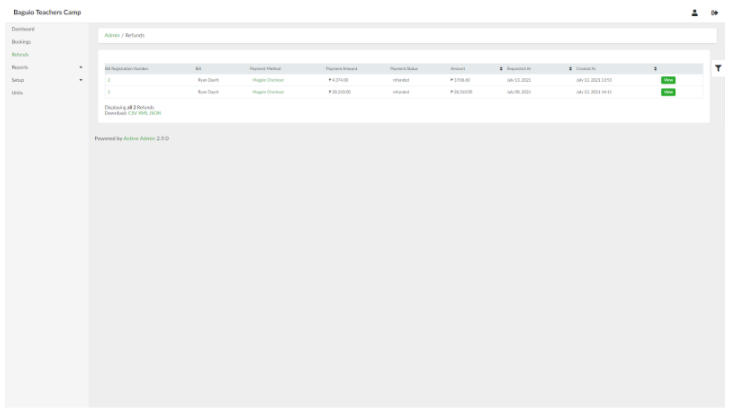](https://wiki.onlinedooze.com/uploads/images/gallery/2022-04/image-1649741292018.png)
4. Refund information can be viewed by selecting the Refund entry and clicking **View**.