# Booking Check-in and Check-out
**Summary: This article provide instructions on how to check-in and check-out of your booking.**
Upon initial payment, the check-in button will be available in the booking details page.
1. To check-in, click the **Check-in** button in the booking details page.[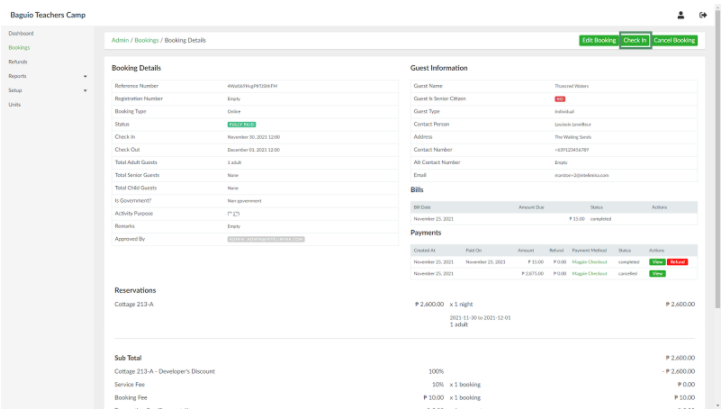](https://wiki.onlinedooze.com/uploads/images/gallery/2022-04/image-1649741355304.png)
This will open the Check in page:
[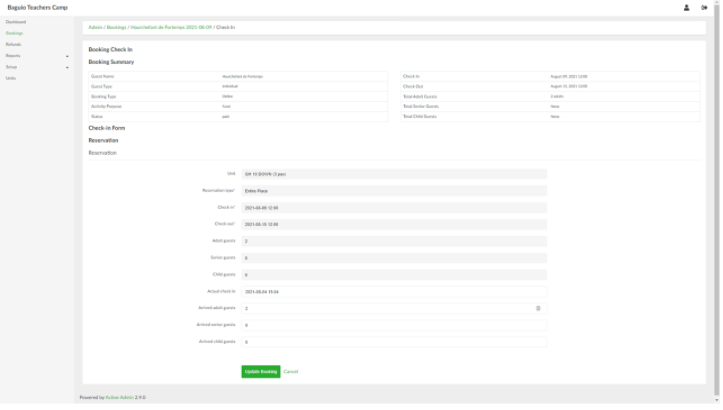](https://wiki.onlinedooze.com/uploads/images/gallery/2022-04/image-1649741371399.png)
*Note that check-in cannot be done prior to the declared booking check-in date.*
2. Update the fields as needed. When done, click the **Update Booking** button. This will change the status of the booking from Paid to Checked-In. The check-in details can be updated by clicking the **Edit Check-in** button.[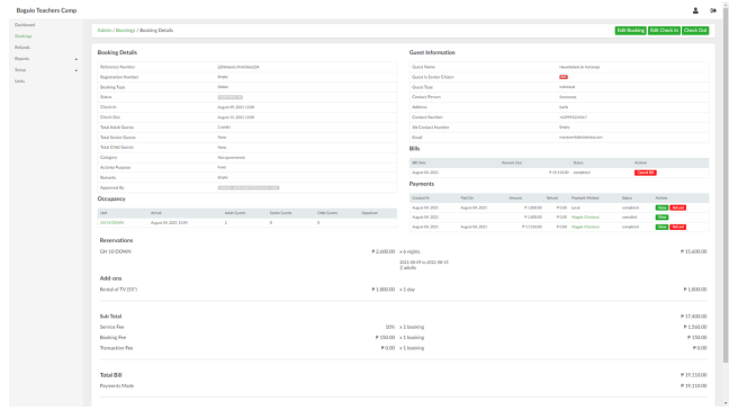](https://wiki.onlinedooze.com/uploads/images/gallery/2022-04/image-1649741430230.png)
3. To check-out, click the **Check-out** button in the booking details page. This will open the Check-out page:[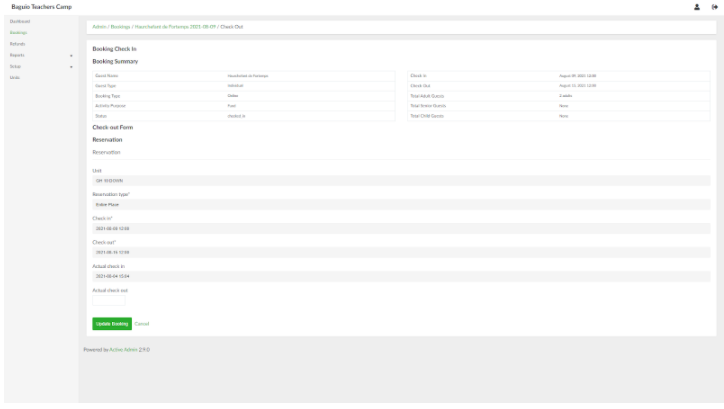](https://wiki.onlinedooze.com/uploads/images/gallery/2022-04/image-1649741448428.png)
4. Provide the date of the actual check out. When done, click the **Update Booking** button.