# Roles and Permissions
# List of Roles page
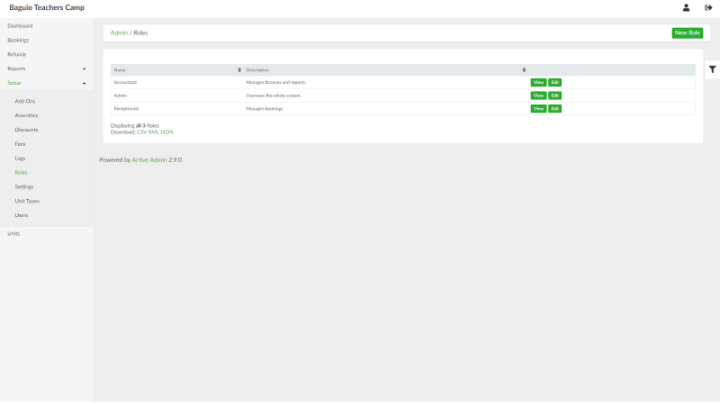
List of Users page can be accessed through the side navigation pane by clicking **Setup > Roles**.
[](https://wiki.onlinedooze.com/uploads/images/gallery/2022-04/image-1649755443113.png)
# Adding a New Role
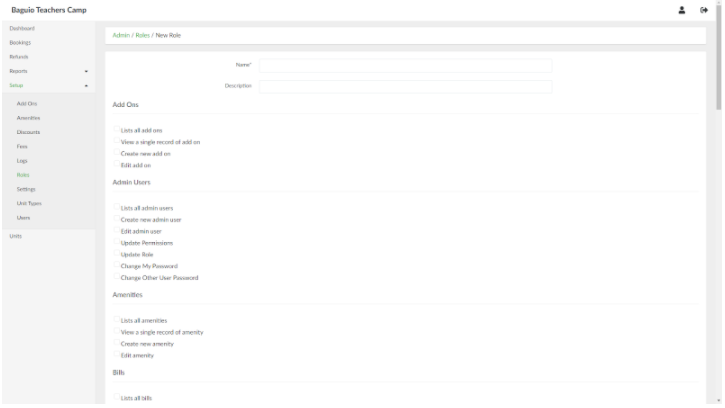
To add a new role, in the list of roles page, click the **New Role** button. Provide the name and description for the role. For each feature of the system, tick the checkboxes that correspond to actions allowed to the role.
[](https://wiki.onlinedooze.com/uploads/images/gallery/2022-04/image-1649755467401.png)
When done, click the **Create Role** button.
# Viewing a Role
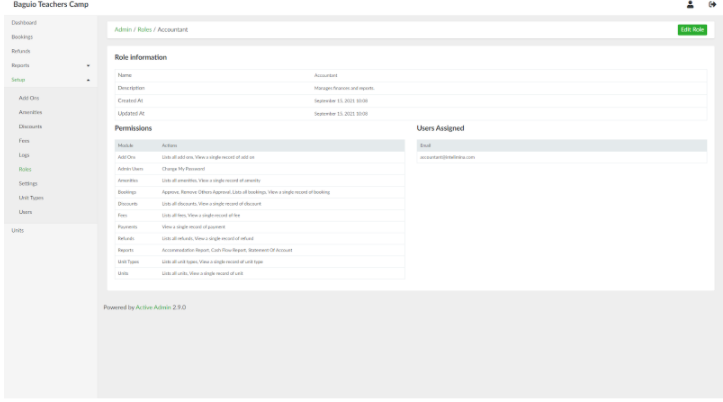
In the list of roles page, select a role and click **View**.
[](https://wiki.onlinedooze.com/uploads/images/gallery/2022-04/image-1649755499977.png)
# Updating a Role
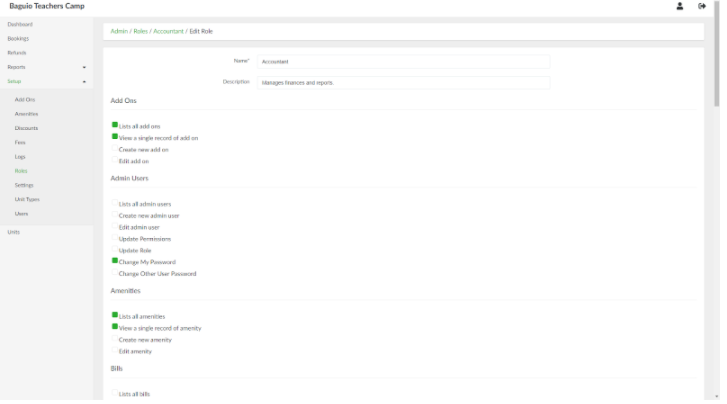
In the list of roles page, select a role and click **Edit**. This will open the role page and the associated permissions to the role.
[](https://wiki.onlinedooze.com/uploads/images/gallery/2022-04/image-1649755521501.png)
Once done updating the details and permissions of the role, click the **Update Role** button.
# Viewing roles assigned to admin users
In the side navigation panel, click **Setup > Permissions**. This will open a page which lists down the admin users and the corresponding roles assigned to them.
# Updating roles assigned to admin users
In the permissions page, select an admin user and click the **Edit Manage Role** link. This will open the Edit Manage Role page. Type the name of the role/s to be assigned to the admin user in the Role id field.
When done, click the **Update Admin user** button.