Roles and Permissions
- List of Roles page
- Adding a New Role
- Viewing a Role
- Updating a Role
- Viewing roles assigned to admin users
- Updating roles assigned to admin users
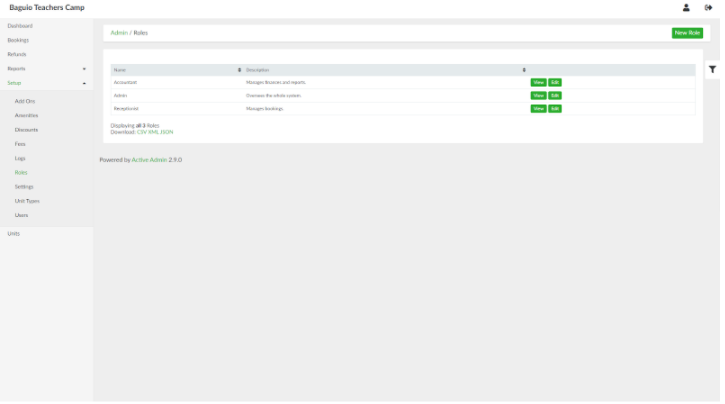
List of Roles page
List of Users page can be accessed through the side navigation pane by clicking Setup > Roles.
Adding a New Role
To add a new role, in the list of roles page, click the New Role button. Provide the name and description for the role. For each feature of the system, tick the checkboxes that correspond to actions allowed to the role.
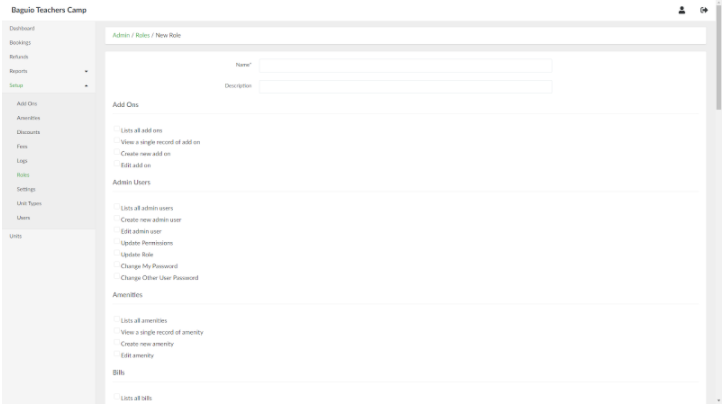
When done, click the Create Role button.
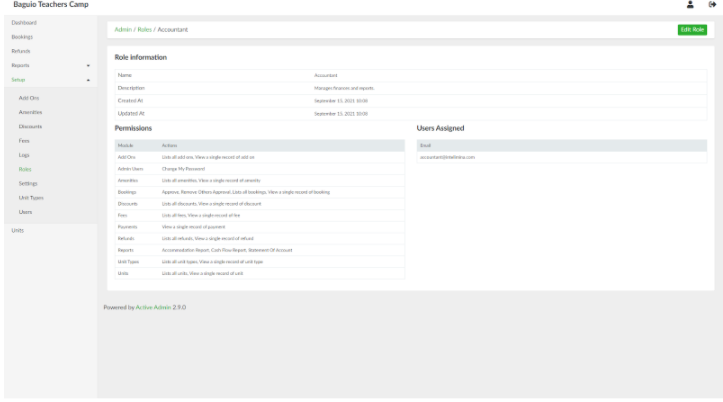
Viewing a Role
In the list of roles page, select a role and click View.
Updating a Role
In the list of roles page, select a role and click Edit. This will open the role page and the associated permissions to the role.
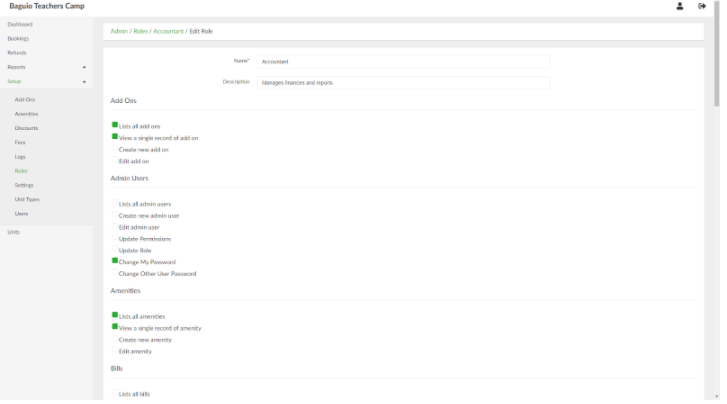
Once done updating the details and permissions of the role, click the Update Role button.
Viewing roles assigned to admin users
Updating roles assigned to admin users
In the permissions page, select an admin user and click the Edit Manage Role link. This will open the Edit Manage Role page. Type the name of the role/s to be assigned to the admin user in the Role id field.
When done, click the Update Admin user button.