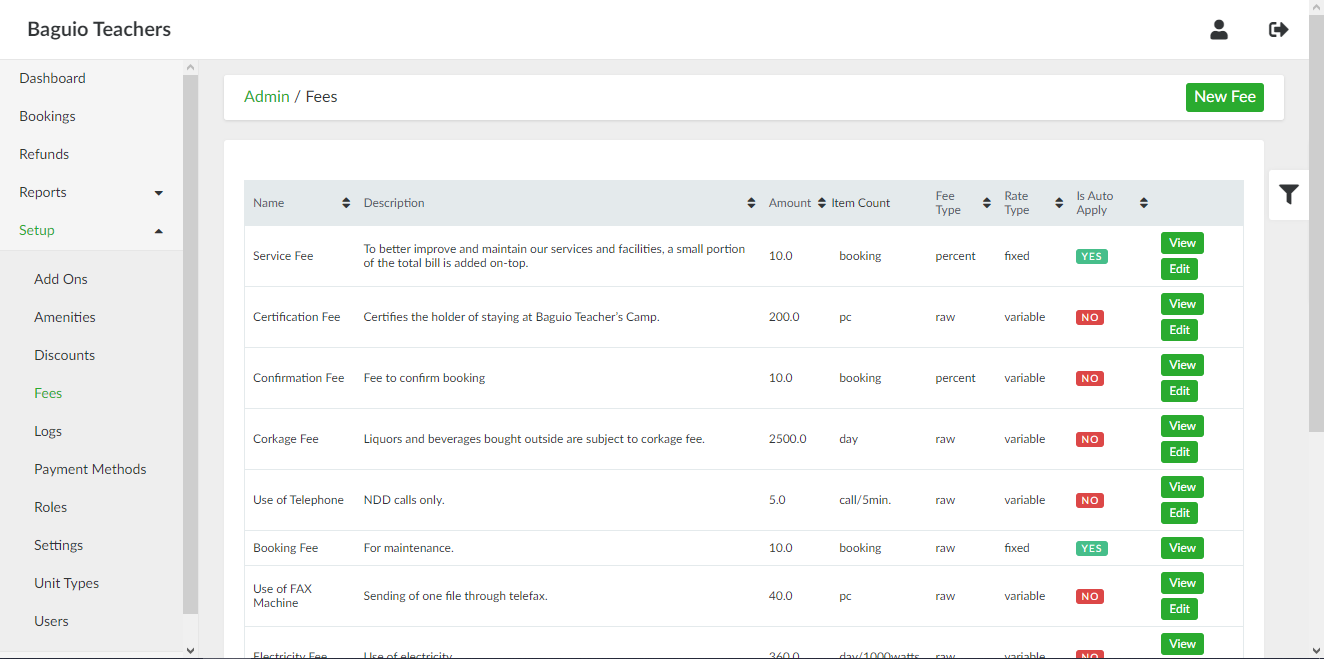
# Fees


# List of Fees page

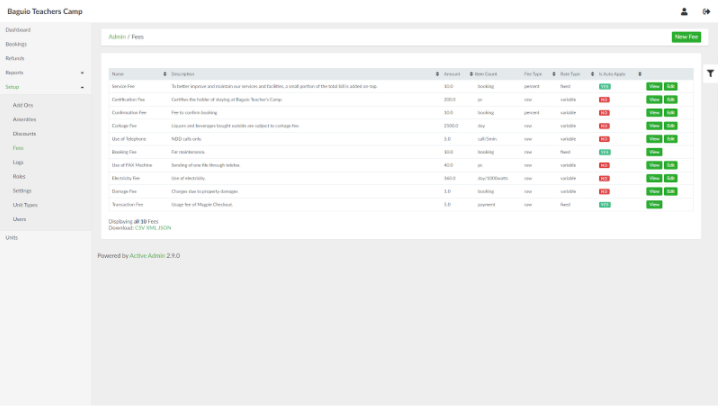
<span style="font-weight: 400;">List of Fees page can be accessed through the side navigation pane by clicking **Setup &gt; Fees**.</span>

[![image-1649754962569.png](https://wiki.onlinedooze.com/uploads/images/gallery/2022-04/scaled-1680-/image-1649754962569.png)](https://wiki.onlinedooze.com/uploads/images/gallery/2022-04/image-1649754962569.png)

# Adding a New Fee

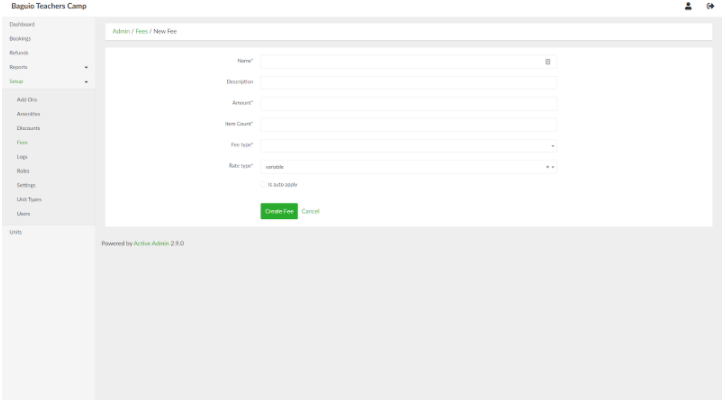
<span style="font-weight: 400;">To add a new fee, in the list of fees page, click the </span>**New Fee** <span style="font-weight: 400;">button. Provide the details of the fee in the respective fields. If the fee will be applied upon initial creation of booking entry, tick the </span>*<span style="font-weight: 400;">Is auto apply</span>*<span style="font-weight: 400;"> check box.</span>

[![image-1649754988953.png](https://wiki.onlinedooze.com/uploads/images/gallery/2022-04/scaled-1680-/image-1649754988953.png)](https://wiki.onlinedooze.com/uploads/images/gallery/2022-04/image-1649754988953.png)

<span style="font-weight: 400;">When done, click the </span>**Create Fee**<span style="font-weight: 400;"> button.</span>

# Viewing a Fee

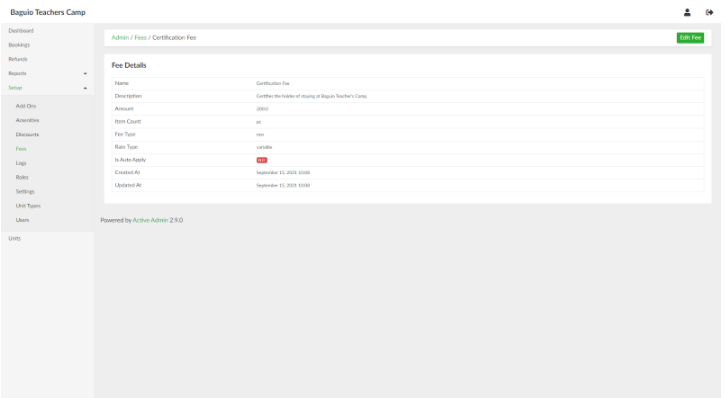
<span style="font-weight: 400;">In the list of fees page, select an amenity and click </span>**View**<span style="font-weight: 400;">.</span>

[![image-1649755018636.png](https://wiki.onlinedooze.com/uploads/images/gallery/2022-04/scaled-1680-/image-1649755018636.png)](https://wiki.onlinedooze.com/uploads/images/gallery/2022-04/image-1649755018636.png)

# Updating a Fee

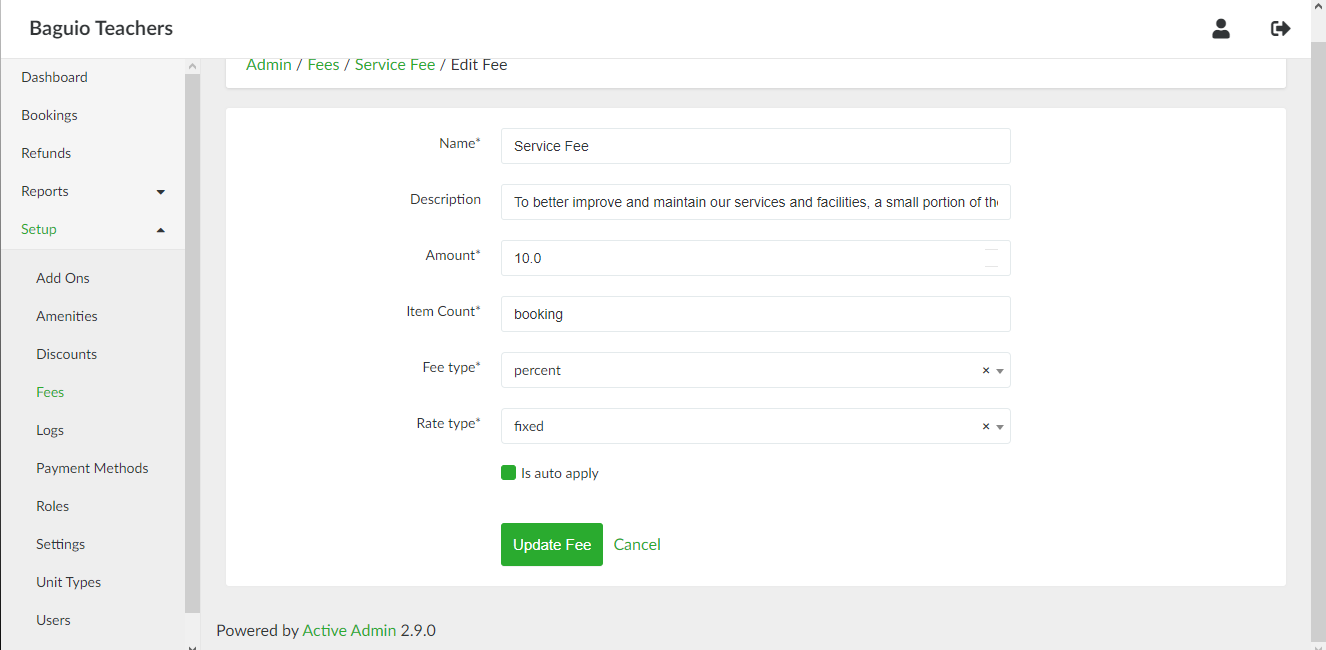
<span style="font-weight: 400;">In the list of fees page, select a fee and click </span>**Edit**<span style="font-weight: 400;">.</span>

[![image-1649755072001.png](https://wiki.onlinedooze.com/uploads/images/gallery/2022-04/scaled-1680-/image-1649755072001.png)](https://wiki.onlinedooze.com/uploads/images/gallery/2022-04/image-1649755072001.png)

[![image-1649755060208.png](https://wiki.onlinedooze.com/uploads/images/gallery/2022-04/scaled-1680-/image-1649755060208.png)](https://wiki.onlinedooze.com/uploads/images/gallery/2022-04/image-1649755060208.png)