# Creating a New Unit
# How to Create a New Unit
**Summary: This article provides instructions on how to create a unit.**
1\. In the list of units page, click the New Unit button. This will open the Create New Unit page. [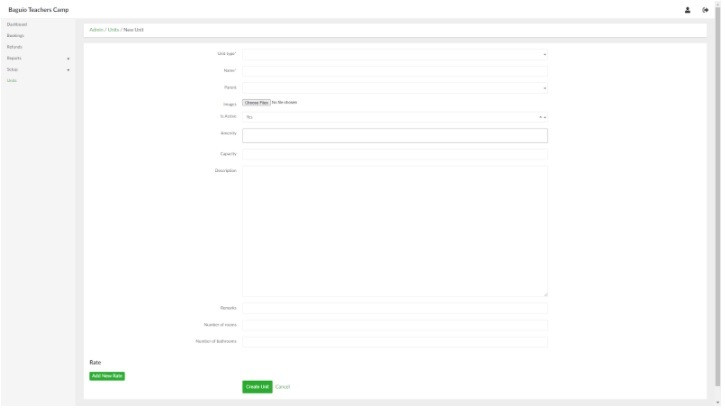](https://wiki.onlinedooze.com/uploads/images/gallery/2022-04/btc3.jpg)
2\. Provide the necessary information in their respective fields. *Note that certain information such as Unit Type and Amenities need to be created first under Setup before they can be included in creating a Unit.*
3\. When done, click the Create Unit button.
# Adding Rates
Rates add specific booking information such as booking price, person per unit, duration length, start and end time (if applicable).
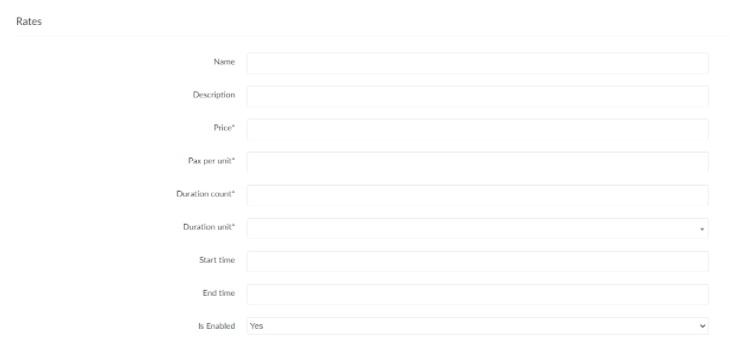
1. In the Create Unit page (see above), click Add New Rate button. This will show additional fields shown below:
[](https://wiki.onlinedooze.com/uploads/images/gallery/2022-04/image-1649741846999.png)
- Name and Description - if applicable, labels and describes the rate.
- Price - booking price per duration (see below)
- Pax per unit - number of people included in the booking price for the unit
- Duration count - duration length covered by the booking price
- Duration unit - duration length unit (days/nights/hours)
- Start time and End time - if applicable, rate can include start and end times (follows 24-hour format)
- Is Enabled - if set to No, the rate is not viewable by the user/client.
2. To add more rates, click the **Add New Rate** button.
3. To remove a rate, click the **Remove** button.