# Amenities
# List of Amenities page
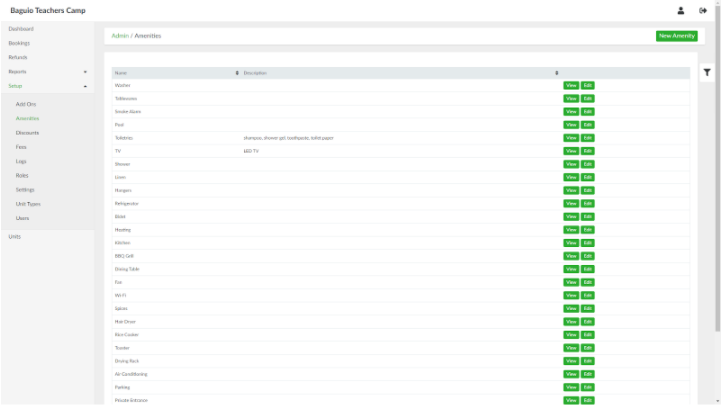
List of Amenities page can be accessed through the side navigation pane by clicking Setup > Amenities.
[](https://wiki.onlinedooze.com/uploads/images/gallery/2022-04/image-1649742384065.png)
# Adding a New Amenity
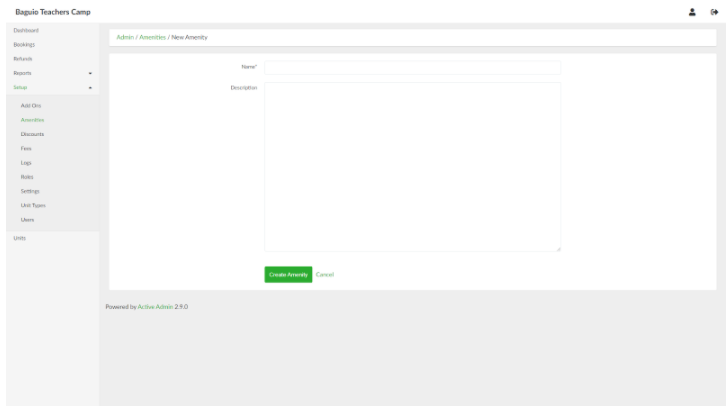
To add a new amenity, in the list of amenities page, click the **New Amenity** button. Provide the details of the amenity in the respective fields.
[](https://wiki.onlinedooze.com/uploads/images/gallery/2022-04/image-1649742406500.png)
When done, click the **Create Amenity** button.
# Viewing an Amenity
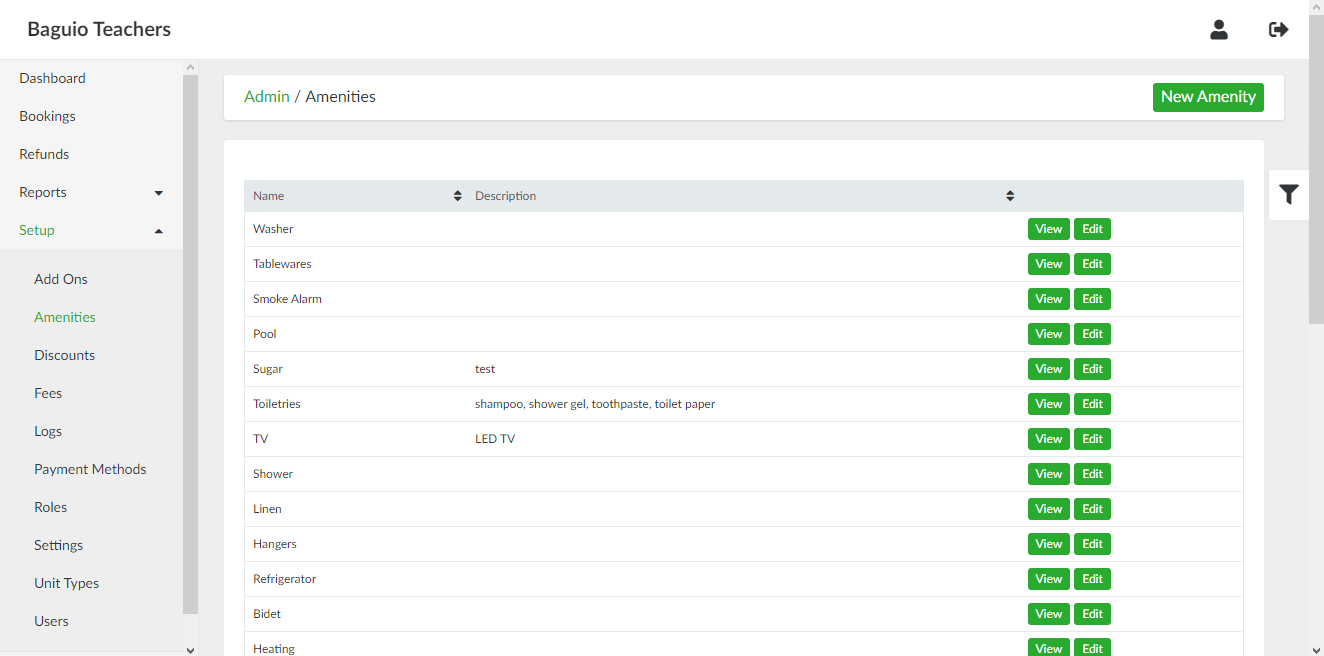
In the list of amenities page, select an amenity and click **View**.
[](https://wiki.onlinedooze.com/uploads/images/gallery/2022-04/image-1649742451326.png)
# Updating an Amenity
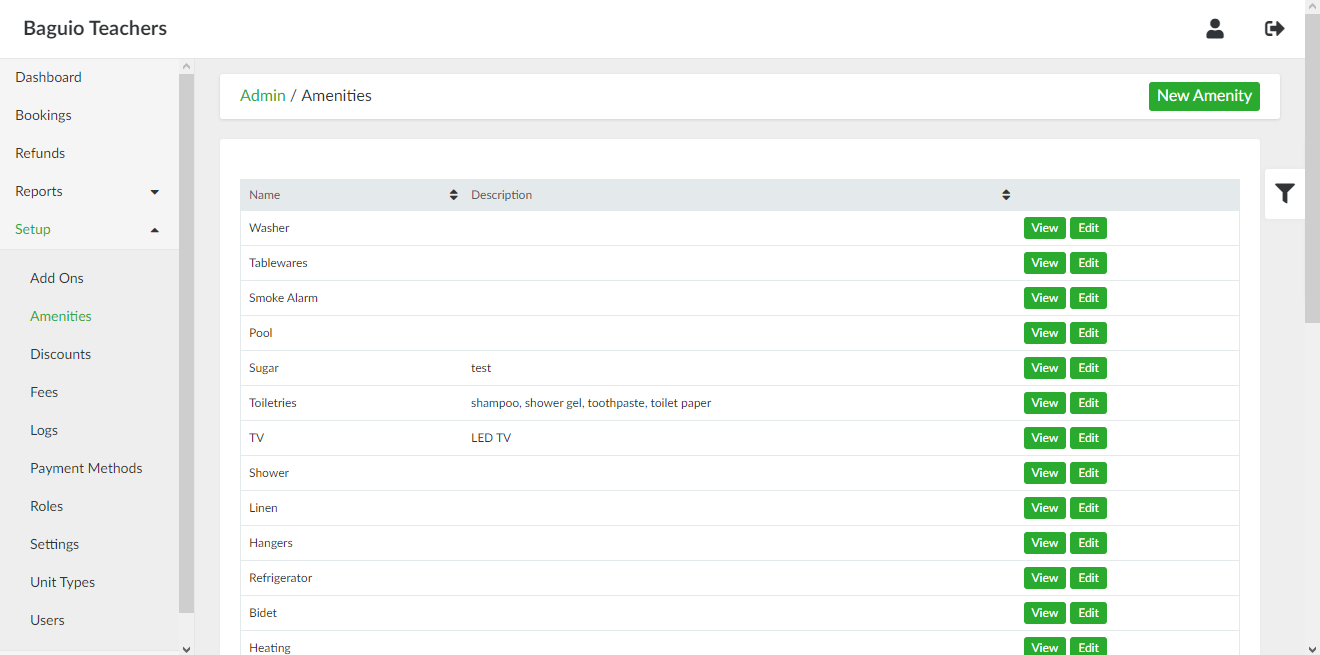
In the list of amenities page, select an amenity and click **Edit.**
[](https://wiki.onlinedooze.com/uploads/images/gallery/2022-04/image-1649742494084.png)